Photo Date vs File Date: Why They Differ
The mismatch is common. A photo browser may show the day a picture was taken, while the operating system shows a newer modified date for the same file. At first glance, that looks like a contradiction.
Most of the time, it is not. The two dates usually come from different systems that track different events. Once that distinction is clear, a confusing metadata panel becomes much easier to read. A broad EXIF metadata guide can help with the field names, but the key question is simpler: which clock is this date actually coming from?

Why a photo can show two different dates
Two clocks are involved. One lives inside the image as embedded metadata. The other lives at the file level and reflects what happened to that file on a device or in software.
The [Library of Congress EXIF family overview] describes Exif as a structured metadata family. It can include camera settings, technical image data, date and time information, geographic data, copyright details, and thumbnails. That means the image itself can carry time clues that are separate from whatever date a file browser happens to display.
This is why one photo can surface at least 2 different time stories at once. An embedded timestamp may describe the capture moment, while a later file date may reflect a save, export, or metadata update that happened long after the shutter was pressed.
Embedded dates answer "when was this image created?"
Embedded metadata is usually trying to describe the image event. In ordinary language, it points back toward capture or toward the moment the image became digital data.
File dates answer "when did this file change?"
File-level dates are about the file object that exists on a device, in a cloud folder, or after an export. Those dates can move forward even when the underlying scene was photographed much earlier.
What EXIF dates usually describe
Field names matter. Similar-looking labels can describe different stages of the photo's life.
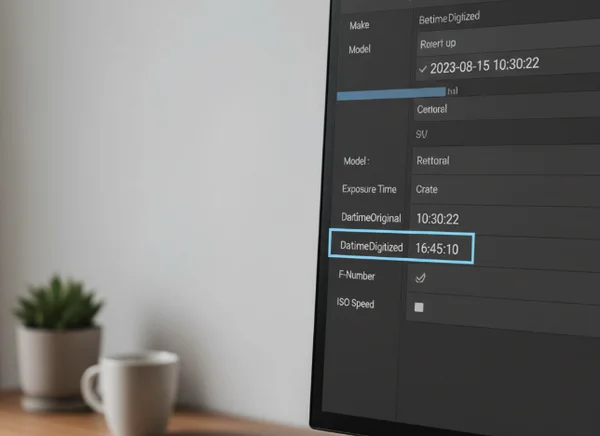
DateTimeOriginal
Adobe's [XMP EXIF namespace documentation] defines exif:DateTimeOriginal as the date and time when the original image was generated. For most everyday photos, that is the closest match to "when the picture was taken."
That field is useful, but it is not perfect. The same Adobe docs note that Exif date-time values do not include time zone information. So a timestamp can look precise down to the second and still be awkward to compare across devices, travel days, or apps that interpret time differently.
DateTimeDigitized
The same Adobe documentation defines exif:DateTimeDigitized as the date and time when the image was stored as digital data. In a fully digital camera workflow, it may be identical to DateTimeOriginal. In a scan, conversion, or other later process, it can point to a different event.
This is why 2 embedded EXIF fields can both be correct and still disagree. They are not always competing versions of the same moment. Sometimes they are recording different moments in the image's history.
Why file dates change after edits or exports
This is where many mismatches begin. People compare an embedded capture field with a later file-level date and assume one of them must be wrong.
Modified dates track later file activity
This is a later clock. Adobe's [XMP TIFF namespace docs] define tiff:DateTime as the date and time when the file was last modified. The same docs note that the property is stored in XMP as xmp:ModifyDate. That is a different question from capture time.
Once a file is exported, re-saved, or rewritten by software, a newer modified date can be completely normal. The file that exists after the export is not just a memory of the shutter moment. It is also a record of later handling.
Common workflows that cause confusion
A copied image may inherit or display dates differently depending on the tool that moved it. A metadata edit may leave the capture field alone but still create a newer modified date. A new export can also preserve some embedded fields while writing a fresh file object with later file-level timestamps.
None of that proves tampering by itself. It often just means the embedded metadata and the file-system history are describing different steps.
How to read a date mismatch without overreacting
The best method is slow and boring. That is a strength, not a weakness.

Start with the field name
Do not stop at a label such as "date." Check whether the viewer is showing DateTimeOriginal, DateTimeDigitized, ModifyDate, or a generic file modified value. The photo metadata reference is most useful when it helps identify the exact field you are looking at.
Compare related fields before drawing a conclusion
If DateTimeOriginal and DateTimeDigitized match, that often supports a straightforward digital capture story. If DateTimeOriginal is old but the modified date is newer, ask whether the image was exported, organized, or edited. If timestamps look off by hours after travel, remember that standard Exif date-time values carry no time zone information.
Treat "newer" as a clue, not a verdict
Pause before judging. A newer date often means "this file changed later," not "this photo is fake." That distinction matters for personal organization, family archives, newsroom workflows, and ordinary privacy checks. It keeps readers from treating every mismatch as a scandal when it may just be normal software behavior.
When normal workflow ends and expert review begins
Context matters. Some questions are educational, while others are forensic.
If the goal is organizing a photo library, a mismatch is usually a metadata-reading problem. If the goal is proving authorship, establishing evidence, or making a legal claim, the standard is much higher. A single field should not carry that burden alone.
Disclaimer: This article is for educational purposes only and does not provide forensic certification, legal advice, or authenticity guarantees. If a disputed image matters for court, insurance, journalism verification, or a formal investigation, seek professional help from a qualified forensic or legal expert.
What to remember
Ask which clock you are reading. Embedded Exif fields often describe capture-related moments, while file dates often describe later file handling. A mismatch is not automatically an error and not automatically proof of editing. In many cases, it simply means 2 different systems recorded 2 different events in the life of the same image.